
Problem
Column header text and option rows are getting cut off in 2020 Worksheet, making it difficult to read the information. Preview images may also be cropped or have display issues.
Cause
This is usually an issue if you are using a high DPI display device such as a Microsoft Surface Pro or other high-resolution monitors (4K Display). With a very high-resolution display, windows automatically sets the DPI Display Scaling to a larger percentage. This essentially magnifies text and other items on the screen so they are easier to see. Unfortunately parts of the Worksheet application user interface are not compatible with display scaling. We recommend running the DPI Scaling as close to 100% as possible. However if the display resolution is very high, setting the DPI to 100% may make things too small on the screen to be seen comfortably.
Solution 1
This solution requires you are running Windows 10 Version 1709 Fall Creators update or Newer. If you are using an older version of Windows, refer to Solution 2.
- Close Worksheet.
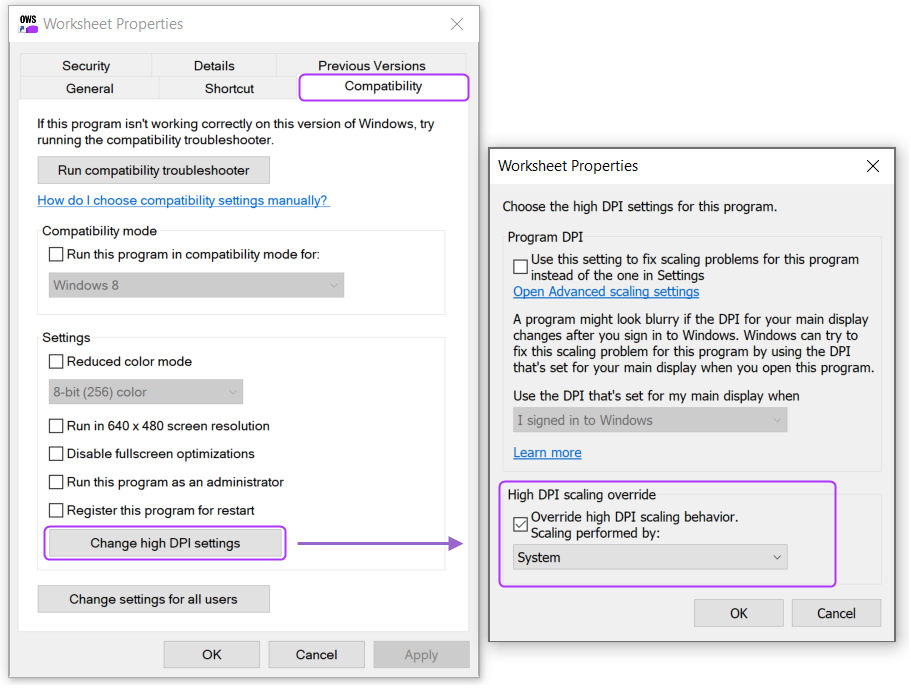
- Right click on your Worksheet program icon and choose properties.
- Select the Compatibility tab.
- Click the Change high DPI settings button.
- Check the box Override high DPI Scaling behavior.
- Set the drop-down selection to System.
- Click OK.
- Click Apply and OK.
- Open the Worksheet application.
Solution 2
If your display's native resolution is greater than standard HD (1920x1080) - try lowering the resolution down to 1920x1080 and then reboot the computer.
Windows should then adjust the DPI to a lower percentage automatically due to the lowered resolution once it reboots. We find this setting a good compromise with a decent resolution and for working within Worksheet. Please follow the steps below to modify your screen resolution:
Windows 7/8
- Right click on an empty area of your computer's desktop and choose Screen Resolution.
- You should now be able to adjust the resolution setting.
- Log off or restart the computer after making any resolution change for the DPI Scaling to update.
Windows 10/11
- Right click on an empty area of your computer's desktop and choose Display Settings.
- Click Advanced Display Settings toward the bottom of the page that appears.
- You should now be able to adjust the resolution setting.
- Log off or restart the computer after making any resolution change for the DPI Scaling to update.