
If you want some items to be priced, but you do not want them to appear on the drawing, use the Cap Complete - Non-Plan Item List (NPIL). For example, you may not want to show electrical items such as outlets, because they clutter your design, so you will add them to the non-plan item list.
Show
To display the Non-Plan Item List, click on the Cap Tools toolbar.
Tip: You may also use the Office ribbon to access the application functions.
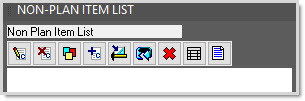
The Non-Plan Item List pane appears.
Refresh
If the Non-Plan Item List and the NPIL table on the drawing do not seem to have the same information, click to synchronize the information.
Note: When you update a drawing with its associated worksheet, items that were added in the worksheet are placed in the Non-Plan Item List.
Related articles
Add a part to the Non-Plan Item List.